- Data Recovery
- Data Recovery for PC
- Data Recovery for Android
- Data Recovery for iPhone/iPad
- Unlock For Android
- Unlock for iPhone/iPad
- Android System Repair
- iPhone/iPad System Repair

Updated By Tom On Aug 19, 2026, 5:14 pm
When restoring the system to factory Settings in Windows 11, many users expect it to solve device performance problems and get a brand new start. However, after the operation is completed, sometimes it is found that important work files, precious photos and other data are accidentally lost. If you are in such a predicament, please stay calm - there are multiple ways to help you retrieve these files, whether through the built-in functions of the system or reliable third-party tools. Next, we will systematically introduce the recovery plan to you.
The extent of deletion that may result from restoring factory Settings depends on the type of reset you choose:
1."Keep My Files" mode
In this mode, the system Settings will be restored to the factory default state. Applications installed outside the Microsoft Store will be removed. Files located in the user directory (such as documents, images, desktop, etc.) are usually retained, but files stored in other parts of the system (such as the root directory of the C drive) may still be lost.
2. "Delete All Content" mode
This mode offers two key options that require special attention. Among the options "Delete only my files", the system performs a quick formatting, and the files are marked as deleted but not immediately overwritten. This provides the best possibility for the subsequent recovery of data through professional tools. The "Delete Files and clean the drive" option uses a secure erasure technology by the system, making it extremely difficult to recover data. This option is applicable to situations where equipment is planned to be sold or transferred.
That is to say, if "Keep my files" is chosen, the data is likely to remain intact. If "Delete All Content" is executed but the drive is not cleaned up, the possibility of successful recovery is relatively high. If the drive cleaning is completed simultaneously, data recovery will be extremely difficult.
Even if Windows 11 is restored to factory Settings, there is still a possibility of restoring those deleted files, but the success rate mainly depends on the following key factors.
1. Reset type selection
Best scenario: If "Delete All Content" was previously selected but the "Clean Drive" option was not enabled.
No recovery required: If "Keep My Files" was selected during the operation, the data usually remains intact.
Extremely difficult to recover: If the "Clean Drive" safe erasure is performed, the data will basically be unrecoverable.
2. Data coverage
After a file is deleted, its storage space will be marked as "available". Any new file write operation may overwrite these areas, increasing the difficulty of recovery or making it completely impossible to recover.
3. Store the device status
Physically damaged hard disks or solid-state drives with bad sectors can significantly increase the difficulty of recovery and even lead to permanent data loss.
4. Selection of recovery plan
The use of professional recovery tools and the correct operation procedures will directly affect the final recovery effect.
Key suggestion: If you have selected "Delete All" but have not cleaned up the drive, and have not frequently used the device after resetting, please perform the recovery operation as soon as possible. The success rate is the highest at this time.
If your Windows 11 has been restored to factory Settings, you can try the four verified restoration solutions we provide.
For users who have enabled the OneDrive synchronization function, this is the most convenient way to recover. The system will automatically guide you to restore cloud files after the reset is completed. OneDrive continuously synchronizes the folders you specify (such as documents, images, and desktops) to the cloud. After resetting the system, simply log in to your Microsoft account
again to trigger the recovery process. The specific operation steps are as follows.
Step 1 Log in with your original Microsoft account during the system initialization setup stage.
Step 2 When the interface displays "Welcome Back" and prompts that an available backup has been detected, follow the instructions to select the source device of the backup you need to restore.
Step 3 After confirming the recovery, the system will automatically download all synchronized files to the corresponding locations.
After completing this process, your important files will reappear in their original folders.
If you have ever saved data to an external device or network storage through "File History" or other backup tools, this will be the most reliable recovery solution after a system reset. The built-in backup function of the Windows system (such as file history) will regularly save copies of your files to the designated storage device. When the original file is lost, you can quickly restore it directly from these backups. The specific operation steps are as follows.
Step 1 Enter [Settings] > [System] > [Storage] > [Backup Options] in sequence.
Step 2 In the historical backup list, click [Go to Backup & Restore (Windows 7)] > select [Restore Files from Other Backups].
Step 3 Connect the external device with the backup and follow the instructions to complete the recovery.
Note: To ensure a smooth recovery, please use the same storage device used when creating the backup.
Windows File Recovery is a free and powerful command-line application officially provided by Microsoft, specifically designed for users with certain technical capabilities. It can handle complex scenarios such as accidental file deletion and drive formatting. Even when the drive is not thoroughly cleaned, it can attempt to recover data lost due to reset operations. For Windows 11 users, this is the preferred free solution for retrieving files after restoring factory Settings. This tool attempts to reconstruct deleted files by scanning the remaining file signatures in the drive. The specific operation steps are as follows.
Step 1 Download and install the Windows File Recovery tool from the Microsoft Store.
Step 2 Run the installation program and click "Yes" in the pop-up permission prompt window to allow the tool to make changes to the device.
Step 3 Confirm "Yes" in the authorization window and start the Command Prompt interface
Step 4 Execute the recovery command according to the following syntax:
cmd: winfr < Source Drive letter > < Target drive letter > [/ mode] [/ Parameter]
Example: Recover PDF and DOCX files from C drive to D drive (Extended mode)
cmd: winfr C: D: /extensive /n *.pdf /n *.docx
Warm reminder: To ensure data security, the recovered files should be saved to another physical drive different from the scanned one (such as an external USB drive). In addition, the success rate of recovery varies depending on the degree of file fragmentation and data coverage, and some files may not be fully recovered.
If you are not familiar with command-line operations or wish to enjoy a more efficient and convenient recovery experience, professional data recovery software is an ideal choice. This type of tool significantly lowers the technical threshold through an intuitive graphical interface and intelligent processes, enabling ordinary users to easily complete complex data recovery tasks.
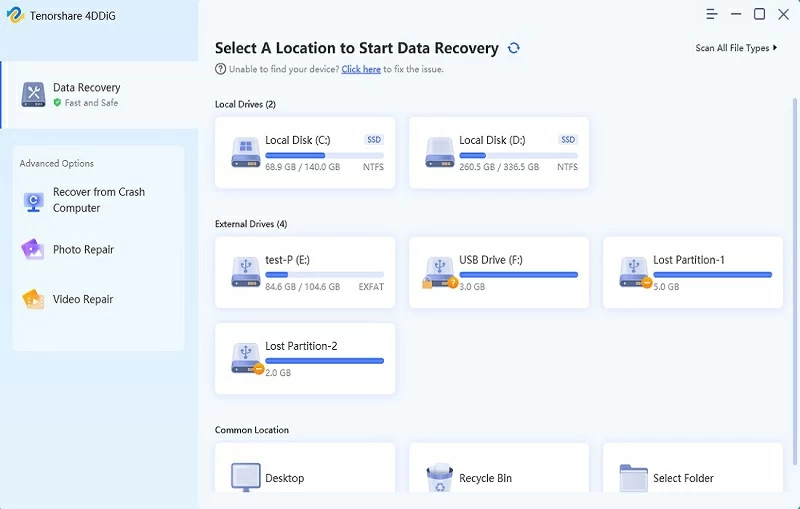
Key features of Geekersoft Data Recovery:
- Deeply restore files that have been permanently deleted from the Recycle Bin.
- Support retrieving data from formatted storage devices.
- Have the ability to repair and extract files from physically damaged devices.
- Can recover accidentally deleted or lost disk partitions.
The core advantages of Geekersoft Data Recovery:
- Intuitive graphical operation interface, no technical background required.
- File preview is supported before restoration to ensure precise recovery.
- Provide multi-dimensional intelligent filtering by type, name, date, etc.
By adopting advanced algorithms, the success rate of recovery has been significantly enhanced.
Prevention is far better than repair! Before performing a system reset, we strongly recommend that you follow these key steps to ensure the safety of your data:
1. Establish multiple backup mechanisms
Cloud backup: Ensure that the key folder synchronization function of cloud drives such as OneDrive and Google Drive is enabled normally.
Local backup: Regularly back up data to external storage devices through the "File History" function.
System image: Use the Windows backup feature to create a complete system image as the ultimate guarantee.
Manual backup: For particularly important personal files, it is recommended to perform an additional manual copy storage.
2. Choose the reset option carefully
Clearly distinguish the essential difference between "Keep my files" and "Delete all content". If the "Clean Drive" option is selected, the data will not be recoverable. It is recommended to prioritize non-deep cleaning options to reserve the possibility of data recovery.
3. Confirm the operation object
Users with multiple hard drives, please confirm that only the system drive (usually the C drive) is reset. Before operation, please unplug all unnecessary external storage devices to avoid misoperation.
4. Ensure power supply
Please connect the laptop to the power adapter.
It is recommended that desktop computers be equipped with UPS uninterruptible power supplies.
Prevent system damage caused by unexpected power outages during the reset process.
5. Read the system prompts carefully
Microsoft will display a clear data deletion warning before resetting. Please be sure to take the time to read and understand all the prompt contents completely.
6. Terminate the software authorization
Before resetting, please perform unbinding operations on authorized software such as Adobe Creative Cloud and Microsoft Office to avoid affecting subsequent reactivation and use.
In the face of data loss after a Windows 11 system reset, please remain calm - in most cases, files can be successfully recovered. The key to success lies in accurately determining the type of reset, taking recovery measures in a timely manner, and choosing the correct recovery plan. We always recommend that regular backups be the top priority for data protection, and professional recovery tools can also be used as a reliable guarantee. By combining prevention with recovery, you will be able to ensure data security to the greatest extent.