- Data Recovery
- Data Recovery for PC
- Data Recovery for Android
- Data Recovery for iPhone/iPad
- Unlock For Android
- Unlock for iPhone/iPad
- Android System Repair
- iPhone/iPad System Repair

Updated By Soha On Jul 8, 2026, 5:12 pm
It is well known that Mac computers have a relatively low risk of data loss, but many users still encounter the problem of disappearing document folders. For instance, some users find that the Documents folder on their Macs cannot be found. If you are troubled by the Documents folder that has mysteriously disappeared on your Mac, you mustn't miss this article. We will introduce to you the reasons why you can't find the Documents folder on your Mac, as well as several effective ways to restore the Documents folder to the Finder sidebar.
Some users have found that the Documents folder has mysteriously disappeared from the sidebar. Or the folder cannot be found after being moved to the desktop. In fact, the disappearance of the Documents folder may be due to the following reasons:
1. The move operation caused it to move out of the Finder sidebar.
2. As it is synchronized with iCloud, the document is saved in its iCloud version.
3. Finder Settings configuration error.
4. The Documents folder was accidentally deleted (you can jump to the "Restore Deleted Document Folders" section).
Sometimes, if you can't find the "Documents" folder, it might be that Mac automatically backed up the documents to iCloud to save disk space. Lost documents can be found in the "My Documents" folder of iCloud. To retrieve it, you need to disable the iCloud synchronization function of the "Documents" folder. After disabling the synchronization, the folder will reappear in the Finder sidebar. The specific operation is as follows:
Step 1 Enter the System Preferences folder and click to open iCloud.
Step 2 Open the iCloud options and view the list of enabled features. Uncheck the desktop and document folders, and disable the automatic synchronization of documents to iCloud. Ignore the pop-up warning and turn off the automatic document synchronization.
Step 3 After disabling iCloud's desktop and document folders, the document folder will reappear in the Finder sidebar, but it may be empty.
Step 4 Open iCloud Drive, click on the "Documents" folder within it, select "Edit" > "Select All", and drag all files back to the "Documents" folder in the Finder sidebar.
By default, the Finder sidebar will display the Documents folder. However, when attempting to move this folder, there may sometimes be a situation where its position is shifted. Users can restore it to the sidebar by configuring relevant Settings. The specific steps are as follows:
Step 1 Open Finder on your Mac and go to the "Preferences" menu.
Step 2 Open the "Sidebar" TAB and set the "Favorites" preferences. You can choose the folder that you wish to display in the sidebar by yourself. In the preferences options, select "Documents folder" and add it to the sidebar.
Step 3 Click, drag and release the folders in the sidebar to adjust their arrangement order.
By following the above operations, the document folder can be displayed normally in Finder.
If none of the above methods work and you accidentally delete the Documents folder, then a professional data recovery tool is your best choice. Generally speaking, after a file is deleted from a computer, it will be temporarily stored in a hidden archive until it is overwritten by new data. Meanwhile, Mac computers retain the source links of all deleted data, which can be used to retrieve the original files. At this time, you cannot directly view this kind of deleted data. Only advanced data recovery programs can help you recover the deleted "My Documents" folder.
Geekersoft Data Recovery (Mac) is specially designed for recovering deleted documents on Mac. It can easily retrieve deleted documents (such as PPT, Word, PDF, Excel, etc.) and media files. You can recover lost document folders with this software by following these three simple steps:
Step 1 Download and install the Geekersoft Data Recovery (Mac), then click the icon or search for the software in Finder to launch it.
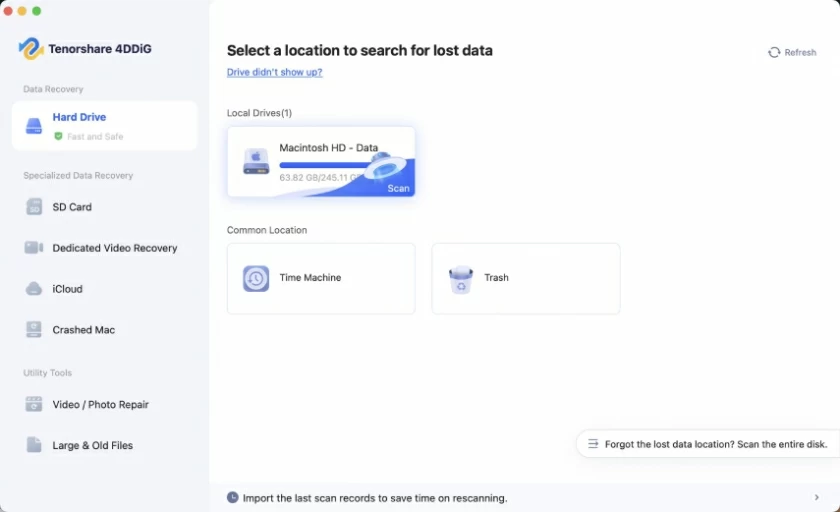
Step 2 This software supports customizing the recovery location. If you are unsure of the storage location of the deleted Documents folder, you can perform a complete scan on your Mac. The software will display the deleted Documents in the selected location for preview. You can confirm that the Documents folder contains the required data before restoring it.
Step 3 After determining the Documents folder you need to restore, click "Restore".
In addition, you can also try to restore it by resetting the Finder Settings. The specific steps are as follows
Step 1 Open Finder, use the Command+Shift+G key combination, and enter the path "~/ Library/Preferences/" to access the preferences folder.
Step 2 Delete the file "com.apple.finder.plist". This operation will cancel all existing Settings of Finder.
Steps 3 Close the Preferences folder and restart your Mac.
If you still can't find the "Documents" folder on your Mac after trying various methods, you can try to restore the Documents folder by resetting Finder through the above steps.
The above are the methods we have introduced for you to help you solve the problem quickly when you can't find the "My Documents" folder on your Mac. These methods are currently the best way to recover lost folders. You can choose the appropriate method according to your own needs. Among them, using reliable data recovery software might be more secure, as there is still a chance to retrieve those files that have been permanently deleted.