- Data Recovery
- Data Recovery for PC
- Data Recovery for Android
- Data Recovery for iPhone/iPad
- Unlock For Android
- Unlock for iPhone/iPad
- Android System Repair
- iPhone/iPad System Repair

Updated By Tom On Nov 18, 2026, 10:08 pm
Losing an unsaved or damaged CorelDRAW file can be a huge blow to a designer, especially after hours or even days of hard work. So how do I get back an unsaved or lost CorelDRAW file? If you are struggling with this question, then don't miss this article. We will give you a detailed look at CorelDRAW files, common causes of Corel Draw file corruption, and several effective ways to retrieve unsaved or lost CorelDRAW files.
Corel Draw is a dedicated file format for Corel Draw Graphics Suite software with the.cdr extension. This file format is mainly used in vector graphic design, widely used in typography, graphic design and other fields. The software supports editing and processing of elements such as graphics, backgrounds, shapes, lines, text, and various effects, making it easy for designers to achieve lossless scaling of images, which is especially critical in the pursuit of high resolution print media.
An in-depth understanding of the causes of Corel DRAW file corruption is important for preventing data loss and implementing effective recovery strategies. Here are some common reasons for Corel DRAW file corruption:
- Software crash: Accidental shutdown of Corel DRAW is highly likely to cause file corruption. Software crashes can occur due to program errors, operating system compatibility issues, or other software conflicts.
- Improper storage: An interruption occurs during the file saving process, such as a power failure or forced shutdown of the program, which may cause incomplete or damaged files. Therefore, it is critical to ensure a stable environment when saving files.
- Virus attack: Malware or virus may be against. CDR files cause damage. By using a reliable antivirus program to protect the system, you can effectively prevent such situations.
- Hardware failure: Storage devices such as hard drives or SSDS are faulty, which may cause file damage. A faulty sector on a disk or a sudden failure can affect the integrity of a file.
- System instability: The operating system has an error or is in an unstable state, which may corrupt the Corel DRAW file. Regular system maintenance and updates can help reduce the risk of such problems.
- Power failure: When processing or saving files, if there is a sudden power failure, the data may be damaged. The use of uninterruptible power supplies (UPS) can effectively reduce this risk by providing backup power.
- File conversion error: Incorrect conversion or conversion failure between different file formats may result in file corruption. It is important to ensure that the file conversion process is correct to avoid data loss.
- File Size: Handling large Corel DRAW files can cause errors, especially if system resources are insufficient to manage them effectively. Optimize file size to help maintain file integrity.
Identifying the above reasons can help users take appropriate preventive measures to protect Corel DRAW files and reduce the probability of file damage.
The loss of Corel DRAW files often causes great distress to users, however, there are still several feasible ways to recover lost files. Below, we will detail five simple and practical file recovery methods that are suitable for different situations such as deleted, unsaved, or damaged Corel Draw files.
Geekersoft Data Recovery is a powerful data recovery tool that efficiently retrieves deleted, unsaved, and corrupted Corel DRAW files. The tool has good user interaction, can be applied to a variety of data loss scenarios, such as deleted files due to misoperation, or software crash caused file loss, Geekersoft Data Recovery can help you easily find. It is capable of recovering lost or deleted Corel Draw files from hard drives, SD cards, USB flash drives, pen drives, and a variety of other storage media for various reasons. In addition, if you want to recover other types of data, such as contacts, emails, video, audio, pictures and your personal social platform related data, Geekersoft Data Recovery is also a one-stop solution.
On how to recover unsaved Corel drawing files using Geekersoft Data Recovery, you can refer to the following steps:
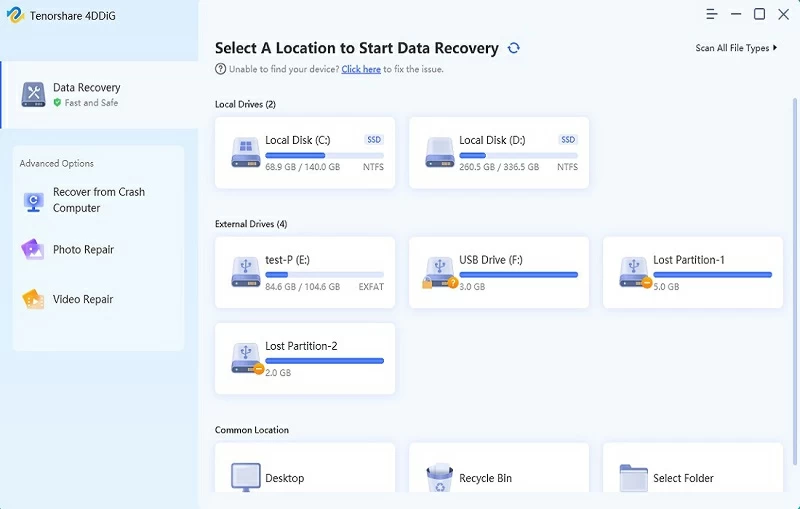
Step 1 Install and start the Geekersoft Data Recovery software on your computer. Then select the drive where the file is stored in the interface and click the "Start" button to start the scanning process.
Step 2 After scanning, preview the file list and select the Corel DRAW file that you want to recover.
Step 3 Click the Recover button to save the file to a new storage location.
The mechanism by which Geekersoft Data Recovery works is to conduct a full scan of the storage device to look for missing files. Before recovering the file, the user can also preview the file, confirm the file content is correct, just click the "Recovery" button, you can restore the file to the specified location, is a simple and efficient data recovery solution.
Corel DRAW software comes with an automatic backup function that periodically saves working copies of users. These backup files can play a key role when the primary file gets corrupted or lost due to an unexpected error. With automatic backup enabled, users can be sure that they always have the latest version of the project available for recovery, minimizing the risk of major data loss and keeping their work safe. In case of file corruption or loss, you can easily restore the latest backup files by following these steps:
Step 1 Open the Corel DRAW software. Click Tools > Options > Workspace > Save.
Step 2 Search for automatic backup files in the open directory. Find the backup file and save it to a new location.
The Windows operating system has a built-in feature that allows users to restore previous versions of files. In other words, when a Corel DRAW file is damaged or accidentally deleted, users can use this feature to access an earlier version of the file and recover the important data they need. Specific operations are as follows:
Step 1 Right-click the damaged or lost Corel DRAW file and choose Restore previous versions from the shortcut menu.
Step 2 Select the version you want to restore from the list. Then click Recover and save the file to the new location.
Corel DRAW Repair Kit is designed specifically to restore damage. CDR file tool. Unlike other conventional recovery methods, the software is designed for the complex nature of Corel DRAW files, and the suite scans corrupted files, identifies problems, and fixes them. The tool is user-friendly and provides users with a step-by-step operation process to retrieve files. Especially when dealing with serious file corruption issues, the Corel DRAW repair kit provides a reliable solution. Specific operations are as follows:
Step 1 Install and start the Corel DRAW repair kit.
Step 2 Browse for the damaged file and click Repair to start the repair process.
Step 3 Save the recovered file to a new location.
When the Corel Draw Graphics Suite software unexpectedly crashes or experiences a power failure, Corel DRAW temporary files are generated and can be used as backup files. By finding and utilizing these temporary files, users may be able to retrieve unsaved work. The restoration procedure is as follows:
Step 1 Locate the Temp folder in the system. Within this folder, look for files with the.tmp extension and the latest timestamp.
Step 2 Rename the file extension from.tmp to.cdr, open the file in Corel DRAW, and save the file in time.
To recover CorelDRAW files in.zip or.rar format, you can try downloading WinRAR software to perform the operation. Both tools have the ability to repair zip files. Once the download is complete, follow these steps:
Step 1 Change the suffix of the corrupted CDR file name to.rar or.zip, and then open the file in the WinRAR or WinZip program.
Step 2 In the open file, search for and copy the file named riffdata.CDR to extract the file content using WinRAR.
Step 3 Create a new DRAW file and import the previously copied riffdata.CDR file to it.
In addition, you can also try to recover CDR files using the "%temp%" command. Because corrupted CDR files may be saved in this Temp folder. The specific steps are as follows:
Step 1 Open the Run dialog box and enter the "%temp%" to access the Temp folder.
Step 2 Search for damaged files with the.cdr extension in the folder. And copy the files found to the desktop.
Step 3 Change the file name extension from.cdr.temp to.cdr. Then import the changed file into CorelDRAW.
Following these tips will help you recover corrupted CorelDRAW files more efficiently and reduce the risk of future data loss.
1. Periodically back up data
You are advised to store backup files on an external drive or cloud storage service to ensure data security and accessibility and avoid unexpected data loss.
2. Enable the auto-save function
Enable CorelDRAW's autosave function to save your latest CorelDRAW results regularly and avoid unnecessary receiving operations.
3. Keep your software updated
Update CorelDRAW and operating system in time to ensure software stability and compatibility.
4. Use a stable power supply
Equipped with uninterruptible power supply (UPS) to prevent sudden power outages from causing damage to files being processed.
5. Control file size
Try to keep the CorelDRAW file size moderate for easy management and recovery.
6. Install and update the antivirus software regularly
Install and regularly update a reliable antivirus program to protect against malware and viruses that can damage files.
7. Check the storage device
Check your storage device regularly, as faulty sectors or hardware failures can cause file corruption.
These are some of the effective ways to recover CorelDRAW files as saved or corrupted. You can choose according to your own situation. Whether using professional data recovery software, automatic backup files, temporary files, old versions or the repair tools that come with CorelDRAW, each method has its own unique advantages. In addition, we recommend that you proactively save your work regularly and maintain backups to prevent major data loss, after all, you are prepared.