- Data Recovery
- Data Recovery for PC
- Data Recovery for Android
- Data Recovery for iPhone/iPad
- Unlock For Android
- Unlock for iPhone/iPad
- Android System Repair
- iPhone/iPad System Repair

Updated By Tom On Dec 7, 2025, 8:30 pm
Losing data on an Android phone or tablet can indeed be very stressful. Whether it is precious photos, important documents or contact information, once they are inaccessible, it will cause a lot of inconvenience. Fortunately, nowadays there are various methods and tools available for Android data recovery. This article will systematically introduce the complete process of retrieving data from Android devices, covering a variety of practical technologies and software solutions to help you recover lost files as much as possible.
Understanding the common causes of data loss can help us take preventive measures in our daily use. The following are some situations that may lead to data loss:
Accidental deletion: Accidental touches or misoperations are the most common causes, which may lead to the deletion of important documents, photos, or even entire folders.
- Accidental formatting: If you accidentally format the internal storage of your phone or the SD card, all data will be cleared.
- System update anomaly: Errors may occur during the update process of some systems, resulting in data corruption or loss.
-Root operation failed: Incorrect Root operation may cause data loss and even lead to the device becoming a brick.
- Malware infection: Viruses or malware may damage, encrypt or delete files in the device.
- Physical damage to the device: Physical damage to the mobile phone, such as dropping it or getting it wet, may also result in data being unreadable.
Most Android users will automatically back up their data to cloud services. Before restoring, it is necessary to first confirm whether there is an available backup.
- Google Drive: If you have enabled backup before, you can log in to your account to restore the data after restoring to factory Settings or on a new device.
- Google Photos: If the lost items are photos or videos, please first check whether they have been synchronized to Google Photos.
For other cloud services such as Dropbox and OneDrive, it is also recommended to log in to check if there are any relevant file backups.
If there is no backup, you can try using professional data recovery software. After connecting your Android device to your computer, scan the device's storage space.
- Geekersoft Data Recovery (Android) : Supports the recovery of various file types such as photos, videos, contacts, and messages.
- Dr.Fone - Data Recovery: User-friendly interface, high recovery success rate, widely recommended by users.
- iMobie PhoneRescue (Android) : Compatible with both rooted and unrooted devices, focusing on deep recovery.
If data loss occurs on an SD card, it can be removed and professionally scanned through a computer.
Connect the SD card to the computer using a card reader. Run professional tools such as Geekersoft Data Recovery to scan the SD card and recover files.
Some data recovery applications can directly scan and recover deleted files on mobile phones, while some tools require Root privileges to perform deep scans.
-DiskDigger Photo Recovery: Mainly used for recovering images, and sometimes also supports other file types.
-Undeleter recovers files and data: Can recover various formats such as photos, videos, and documents.
If the equipment has been physically damaged, or the data is extremely important and the above methods are ineffective, it is recommended to contact a professional data recovery agency. Such services usually have professional equipment and technology that can attempt to extract data from severely damaged devices.
Geekersoft Android Data Recovery is a practical tool that can directly restore deleted files on Android devices without the need for prior backup.
The core advantages of Geekersoft Data Recovery(Android):
- No Root privileges required: No Root operation on the device is needed, which not only ensures system security but also does not affect warranty rights
- Fully compatible with multiple data types: Supports the recovery of various file formats such as photos, videos, contacts, text messages, and wechat chat records
- Preview and Selective Recovery: Before restoring, you can preview the file content and precisely select the items you need to restore
- High recovery success rate: Utilizing deep scanning technology, it performs exceptionally well in the recovery of deleted data
The following are the complete steps to recover data from an Android phone using this tool:
Step 1 Download and install Geekersoft Data Recovery (Android) on your computer. After opening it, select the "Recover Phone Data" option.
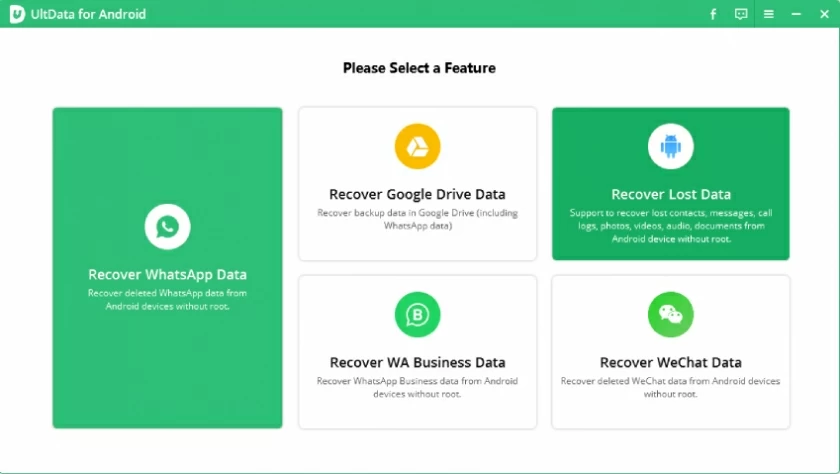
Step 2 Connect your Android phone to your computer using a data cable and turn on the USB debugging mode. Click "Start" to continue the operation. If the device is not recognized, please follow the interface prompts to make the Settings.
Step 3 After a successful connection, select the appropriate scanning method according to your needs. If the regular scan fails to find the file, it is recommended to use a "full scan" to obtain a more complete result.
Step 4 The software will automatically analyze the device's storage space and retrieve lost files. This process may take some time. Please ensure the device is stably connected. After the scanning is completed, all recoverable files can be previewed. After checking the required content, click "Restore" and select the save format to export the data to a safe location.
1. Immediately stop using the device: Once data loss is detected, the operation of the device should be halted as soon as possible to prevent new data from being written and overwriting the deleted content.
2. Enable USB debugging mode: Ensure that the USB debugging function in the developer options is enabled to restore the software's normal access to device storage.
3. Consider Root privileges carefully: Some tools require Root privileges for in-depth scanning, but rooting can cause the device to lose its warranty and pose security risks. You need to weigh the pros and cons when using them.
4. Choose legitimate data recovery software: Give priority to using professional data recovery tools with a good reputation to avoid using software of unknown origin that may cause secondary damage.
5. Perform recovery operations as soon as possible: The success rate of data recovery is closely related to time. The earlier it is processed, the greater the hope of recovery.
When attempting to recover data, some common mistakes may reduce the success rate or even cause irreversible losses. Please note to avoid the following points
- Resulting in data overwriting: After data loss, please stop using the device immediately. Continuing to write new data (such as taking photos or downloading files) will occupy the storage space of deleted files, significantly reducing the possibility of recovery.
- Choose unreliable recovery software: Be cautious when selecting data recovery tools and avoid using software of unknown origin or poor reputation to prevent fraud, malicious software or secondary data damage.
- Ignore the importance of regular backups: Do not rely on a single recovery method. It is necessary to establish and adhere to the habit of regular backup, whether by using cloud services for automatic synchronization or manually performing local backups, to ensure that important data has multiple copies.
Prevention is better than recovery. The risk of future data loss can be greatly reduced by taking the following measures:
- Adhere to regular backups: Develop the habit of regularly backing up the data on your Android device to Google Drive or other trusted cloud services. This is the most fundamental guarantee for data security.
- Make good use of external storage: Store important files on an SD card for easy management and transfer. Even if the device malfunctions, it is easy to remove the SD card and try to recover the data.
- Install security protection: Install a reputable antivirus software on the device to effectively prevent attacks from malicious software and viruses, and protect files from being encrypted or damaged.
- Be cautious during operation: Before performing a deletion operation, be sure to carefully confirm to avoid the loss of important files due to misoperation and reduce the occurrence of accidents from the source.
Although data loss on Android devices can cause great stress, it is entirely possible to successfully recover files by adopting the right tools and a systematic approach. You can try the following methods for restoration. First, check all available backups; If there is no backup, use professional software such as Geekersoft Android Data Recovery as soon as possible for scanning and recovery. Throughout the entire process, it is essential to follow all the suggestions mentioned in the text to maximize the success rate. Finally, please remember two key principles: First, act quickly; the earlier you try, the greater the hope of recovery. Second, prevention must be in place. Only by establishing good data management habits can you most effectively protect your digital assets from losses.