- Data Recovery
- Data Recovery for PC
- Data Recovery for Android
- Data Recovery for iPhone/iPad
- Unlock For Android
- Unlock for iPhone/iPad
- Android System Repair
- iPhone/iPad System Repair

Updated By Soha On Dec 7, 2025, 7:56 pm
When precious videos on an SD card are accidentally lost and have not been backed up yet, it can indeed cause anxiety. But fortunately, even without a backup, you still have a great chance of restoring these deleted videos. If you are troubled by this problem, you mustn't miss this article. We will introduce to you why files deleted from an SD card do not end up in the Recycle Bin, why these files can usually still be recovered, and provide specific operation guidelines for Windows and Android users respectively. In addition, you will learn about a variety of free methods and professional tools to help you safely and reliably recover SD card videos.
As is well known, when you delete files from an SD card, they are not moved to the "Recycle Bin" or "Trash" like files on a computer's hard drive, but are directly removed from the directory. In the Windows system, deleted files on removable storage devices such as SD cards will completely skip the Recycle Bin, so these contents cannot be found in the regular Recycle Bin, which may eventually lead to permanent deletion. However, in macOS, the situation is slightly different. The system sometimes automatically generates a hidden ".trashes "folder on the SD card, where deleted files may be temporarily stored. But this situation is not stable - once you empty the trash or format the SD card, these files will be completely lost. Therefore, relying on the trash function of macOS to recover files on SD cards is not reliable and can sometimes even be misleading.
That is to say, the SD card itself does not have a recycle bin mechanism like an internal hard drive. This also means that data recovery is highly time-sensitive. Once file loss is detected, professional data recovery software should be used as soon as possible to handle it, in order to increase the chances of successful recovery.
Under normal circumstances, even without a backup, there is still a chance to recover deleted videos on an SD card. In fact, deleted files do not disappear immediately or permanently. Their data is still retained on the memory card until they are overwritten by new files. Therefore, as long as timely action is taken and the correct tools are used to scan the memory card, it is possible to recover the lost video. The success rate of recovery depends on two key factors: the time elapsed since the data was deleted and whether new data has been written.
In addition, the type of equipment used will also affect the recovery operation. When deleting SD card files on a Windows or Mac computer, the system usually regards it as a permanent deletion. In some Android devices with built-in SD card storage, as long as they are not overwritten by new content, there is still a possibility of video recovery.Also, the size of the video file is related to the difficulty of recovery. The larger the file, the more storage blocks it occupies. If only part of the blocks are overwritten, the possibility of file damage also increases accordingly.
Although it cannot be guaranteed that all videos can be recovered 100%, as long as you act quickly and choose reliable recovery software, the chance of successfully retrieving deleted videos from the SD card is still very high even without a backup.
If you want to recover deleted videos from an SD card for free on the Windows platform, you can use a professional tool called Geekersoft Data Recovery. This software supports the recovery of videos and other types of deleted files from various storage devices such as built-in hard drives, external hard drives, USB flash drives and SD cards. It is applicable to Windows 10 (2004 and above versions) and Windows 11 systems. Users can directly download and install it from its official website. This software supports versions such as Windows 11/10/8/7.
The operation steps for recovering videos using Geekersoft Data Recovery are as follows:
Step 1 Visit the official website of Geekersoft Data Recovery, download and install the software.
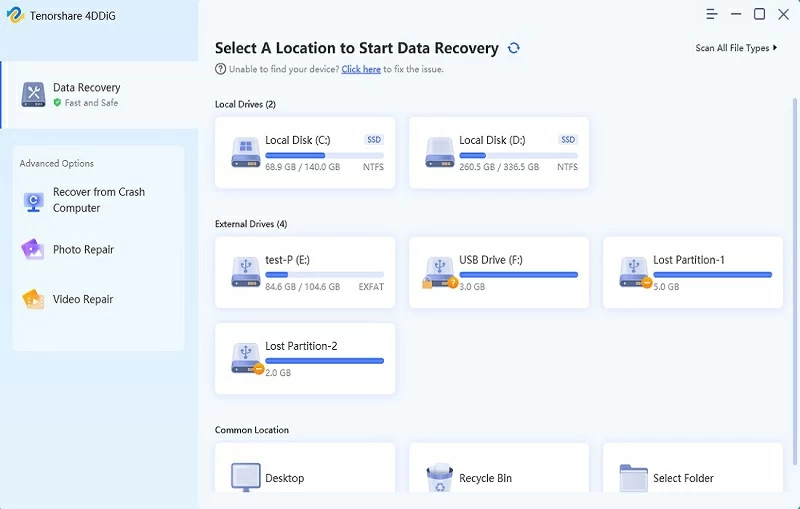
Step 2 Use a card reader to connect the SD card to the computer. And start the Geekersoft Data Recovery tool, and select the drive where the SD card is located for scanning.
Step 3 Wait for the scan to complete. In the result list, check the video files you need to restore, click "Restore" and select a secure storage path.
It should be made clear that on Android devices, deleted videos are not immediately cleared, and the storage space they occupy is only marked as "overwritable". Therefore, as long as the operation is carried out in time and new data is not written, there is still a chance to restore these videos for free. Since the Android system does not have a built-in data recovery function, third-party tools are usually needed. Geekersoft Data Recovery (Android) is precisely the professional software designed for this scenario.
As a reliable data recovery tool on the Android platform, Geekersoft Data Recovery (Android) can effectively recover various types of data in the internal storage of mobile phones and SD cards without the need for Root operation on the phone. This software has a user-friendly interface and a high recovery success rate. Even ordinary users can easily complete the entire recovery process.
The main features of Geekersoft Data Recovery (Android):
Adopt advanced recovery technology to ensure a high success rate of recovery.
Fully compatible with all types of Android devices and system versions.
Support recovery in multiple data loss scenarios.
In addition to videos, you can also recover file types such as photos, contacts, and documents.
The operation steps for recovering SD card videos on Android using the Geekersoft Data Recovery (Android).
Step 1 Download and install Geekersoft Data Recovery (Android) on your computer. After opening the software, connect your Android device via a USB data cable. In the interface, select "Recover Deleted Data from Device".
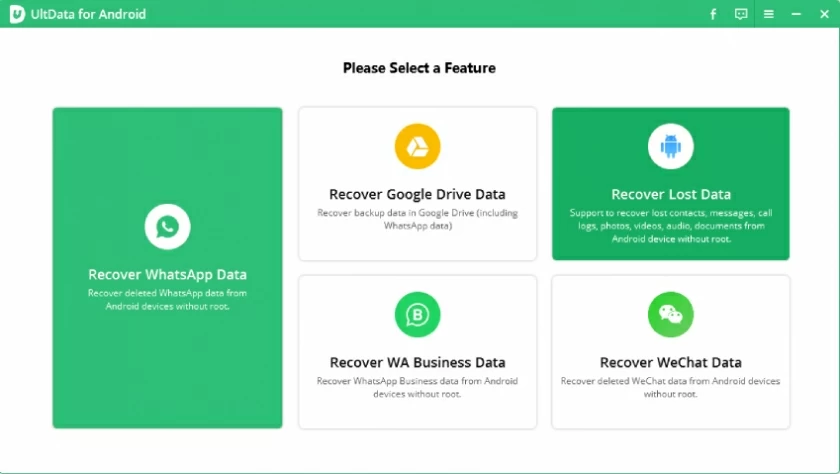
Step 2 According to the on-screen prompts, enable the USB debugging mode on your mobile phone. If it has been enabled before, you can skip this step.
Step 3 Select the file type you need to recover (such as "Video"), and then click "Scan" to start the analysis.
Step 4 Wait for the scan to complete. Preview the recoverable video files in the result list, check the required content, and then click "Restore" to save them to a safe location.
Losing videos on an SD card without a backup is undoubtedly worrying, but in most cases, there is still a possibility of data recovery. The key lies in taking prompt action: immediately stop using this SD card, avoid writing new data, and use reliable data recovery tools as soon as possible. Windows users can try to recover by using system-compatible free tools, such as Geekersoft Data Recovery; For Android users, Geekersoft Data Recovery (Android) offers a secure and convenient recovery solution that can be operated without Root. In conclusion, even without a backup, as long as it is handled promptly and the method is appropriate, it is still completely feasible to recover deleted videos from an SD card.