- Data Recovery
- Data Recovery for PC
- Data Recovery for Android
- Data Recovery for iPhone/iPad
- Unlock For Android
- Unlock for iPhone/iPad
- Android System Repair
- iPhone/iPad System Repair

Updated By Soha On Mar 3, 2026, 7:38 pm
Recently, some users have reported that all their notes on their Macs have vanished, which contain a large amount of important information such as to-do lists, passwords, work reminders and creative ideas. The user indicated that they did not remember performing the deletion operation, but could not confirm this with 100% certainty. Based on this situation, the user hopes to know the specific method for retrieving deleted notes on a Mac. If you are also facing this situation. This article will provide you with a detailed introduction to the feasibility of recovering deleted notes on Mac and several safe and effective solutions.
In the current era where digital office work and life are increasingly integrated, note-taking apps on Mac have become powerful tools for many users to record important information, plan daily affairs, and store creative inspirations. However, unexpected situations occur from time to time. Users may encounter the situation where their notes are mistakenly deleted. At this point, the feasibility of restoring deleted notes becomes the focus of everyone's attention. Considering various factors comprehensively, it is highly feasible to recover deleted notes on Mac. The following is a detailed elaboration from different dimensions.
1. Temporary storage in the wastebasket
The Mac operating system has a complete file management mechanism. When users delete note files, the system usually does not immediately and completely clear them from the storage device, but first moves these files to the Trash. The wastebasket is like a temporary document storage station, providing users with an opportunity to repent and restore. By default, macOS will keep deleted files in the trash for up to 30 days.
2. The time machine automatically backs up
"Time Machine" is a powerful backup tool built into the Mac system. It can automatically and regularly back up the entire system, including users' data files, system Settings, and applications, etc. As long as the user enables the "Time Machine" function in advance and connects an external storage device (such as a portable hard drive, time capsule, etc.) as a backup disk, the system will perform backups at the set time intervals (usually every hour).
3. Professional software provides technical support
In addition to the built-in recovery mechanism of the system, there are many professional data recovery software available on the market for selection. These software programs usually feature advanced scanning algorithms and data analysis technologies, capable of conducting in-depth scans of Mac's storage devices
However, it should be noted that data recovery is not 100% successful in all cases. Its success rate is influenced by various factors, such as the length of the deletion time, the usage of disk space, and whether an overwrite has been performed. Therefore, to ensure the security of note data to the greatest extent, it is recommended that users develop the good habit of regularly backing up important data just in case.
Since it is feasible to recover deleted Notes on a Mac, we will next introduce in detail five successful methods for recovering Mac Notes, which cover the most common scenarios ranging from accidentally moving files to the trash to permanent deletion.
Even if the user doesn't remember to delete the operation or drag the Notes to the trash bin, it is still recommended to check the trash bin. If the lost memo is not found in the trash bin, it may have been permanently deleted. Please note that the macOS system will keep deleted files in the trash for up to 30 days, so there is a possibility of recovery.
If you want to know the operation steps to undo deleted notes on a Mac, you can follow the instructions below
Step 1 Users can find the trash bin icon in the program center on the desktop and click to open it.
Step 2 Find the notes you need to restore in the trash bin and drag and drop them onto the desktop. Alternatively, right-click the note icon and select the "Put Back" option, which will restore the note to its original position.
Although the macOS system is equipped with a series of backup and recovery utilities, in some specific situations, deleted files cannot be successfully restored using the system's native tools. In such cases, for the recovery of Mac Notes, third-party data recovery software is a better choice, and Geekersoft Data Recovery is one of the outstanding ones.
The core functions of Geekersoft Data Recovery:
- Geekersoft Data Recovery has a recovery success rate as high as 99.5% and possesses powerful data retrieval capabilities.
- Whether it's due to empting the trash, failure of time machine backup, accidental or permanent deletion, disk formatting, computer damage, or any other reason that causes data loss,
Geekersoft Data Recovery can help you quickly retrieve it.
- The operation of Geekersoft Data Recovery is simple. Users only need to follow three simple steps to recover files.
- Geekersoft Data Recovery also has the functions of automatic identification and repair. It can automatically identify and repair damaged pictures and document files, presenting the repair results to users in the preview stage, allowing users to understand the status of the restored files in advance.
- The Geekersoft Data Recovery software has good system compatibility and supports multiple system versions from macOS X to macOS 14 Sonoma, which can meet the data recovery needs of different users in different operating system environments.
As a data recovery software specifically designed for Mac OS, Geekersoft Data Recovery can easily recover deleted or lost files in over 500 data loss scenarios, covering common situations such as deletion, formatting, and disk damage. You just need to follow these steps to efficiently and safely restore deleted notes on your Mac.
Step 1 Download and install the Geekersoft Data Recovery software from the official channel. Follow the installation wizard to complete the installation process and then start the software. After entering the main interface of the software, directly select "Wastebasket", and Geekersoft Data Recovery will start the quick scanning mode. You can also choose the "Deep Recovery" mode to conduct a comprehensive scan of your computer.
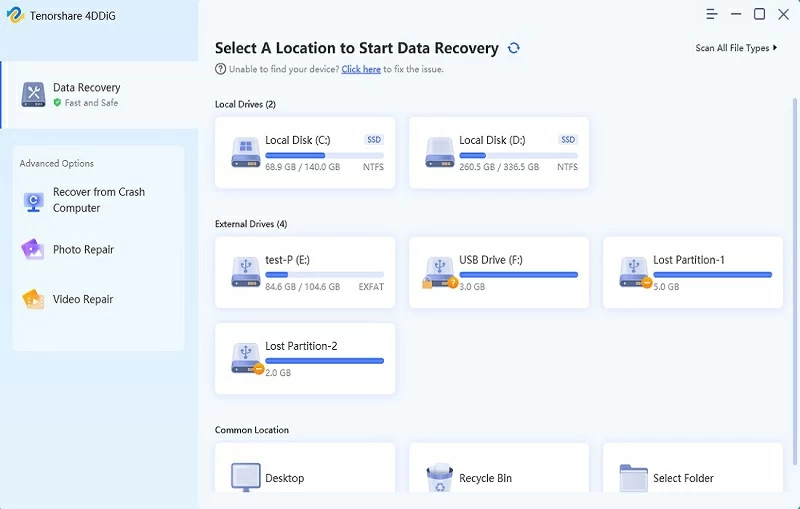
Step 2 After the scanning in is completed, search for the deleted notes through multiple methods. For instance, you can filter and search by file type, time and file size, or directly use the search bar to enter specific keywords for precise search.
Step 3 Double-click the preview to find the file. After confirming that there are no errors, select all the notes that need to be restored. Then click the "Restore" button, and in the pop-up window, select a safe location to store the restored notes. Finally, click the "Save" button to complete the restoration operation.
When you can't find the recently deleted notes locally on your Mac, you can use Apple's iCloud storage service to retrieve the data. The prerequisite is that you have successfully enabled the iCloud synchronization function before your notes disappear from your Mac. This way, there is a greater chance of retrieving the lost notes. The specific operation steps are as follows
Step 1 To prevent notes from being synchronously deleted from iCloud during subsequent operations, iCloud synchronization needs to be turned off first. Open "System Preferences" on your Mac, find the "iCloud" option in the left sidebar and click to enter. In the iCloud Settings interface, find the "Memo" synchronization option and disable it. This operation ensures that local note deletion operations will not be synchronized to iCloud, safeguarding data security.
Step 2 After completing the synchronization shutdown operation, visit the official iCloud website (https://www.icloud.com) in your browser and log in with your Apple ID. During the login process, please ensure a stable network connection and that the account and password you enter are accurate and correct.
Step 3 After successfully logging into iCloud, find the "Notes" option in the left sidebar of the interface and click on it. Search for lost notes. If you can't find it in this interface, you can go back to the left sidebar and open the "Recently Deleted" folder.
Step 4 After finding the note you need to retrieve, click the "Restore" button on the right side of the note. The system will pop up a confirmation prompt box. After confirming that there are no errors, click "OK" to safely restore your notes to your iCloud account.
Even if you can't find the deleted notes in the trash can or iCloud and the Time Machine backup function has been enabled previously, you can restore the accidentally deleted notes through this function. Time Machine is a powerful backup tool built into the Mac system. It can perform comprehensive backups of system data on a regular basis, providing reliable protection for users' data security. Please refer to the following operation steps:
Step 1 Start the Time Machine in two ways. One way is to click the Spotlight search icon (in the shape of a magnifying glass) in the menu bar at the top right corner of the Mac screen, enter "Time Machine" in the search box, and then select and open it from the search results; Another way is to open "System Preferences", find the "Time Machine" option in the Settings interface and click to enter.
Step 2 After entering the Time Machine interface, select the location that may contain the lost notes, such as the "Documents" folder. Then, browse forward or backward by date to find the files that have been permanently deleted. The Time Machine will display the system backup status at different time points in the form of a timeline.
Step 3 After finding the deleted note, click the note icon, and the system will provide a file preview function. Confirm through preview whether the note is the content that needs to be restored, including the title, main body and other information of the note. After confirming that there are no errors, select all the notes that need to be restored and click the "Restore" button on the interface. The system will automatically restore the selected notes to the designated position.
In addition to the above methods, you can also restore deleted comparisons from temporary files. That is to say, you can recover deleted notes on your Mac from the.storedata file. These files are temporary files automatically generated by Mac in the background during program execution or file modification. Please refer to the following operation steps:
Step 1 Open Finder, click on "Go" in the top menu bar, and select "Go to Folder". In the search box and paste address: ~ / Library/Containers/com. Apple. Notes/Data/Library/Notes /, and then click the "to".
Step 2 Mac will open the "Temporary Data" folder, where files related to "Memos" will be displayed on the right side. Select these files, choose "Copy" from the right-click menu, and paste them to any safe location.
Step 3 Change the file extension of the copied Notes file from.storedata to.html. After that, open these files with a Web browser and you will see the text content recorded in each note. Although the complete Notes file format cannot be restored, the text content can be copied and saved separately to avoid permanent loss.
The above is what we have introduced to you about the effective methods that can help you recover when important memos disappear from your Mac. Including search and recovery in the wastebasket, iCloud, Time Machine or temporary files, as well as professional data recovery software such as customer data recovery. When the Notes recovery method provided by MacOS for users doesn't work, Geekersoft Data Recovery can play a significant role. It can deeply scan storage devices to find notes that have been lost for a long time or even permanently deleted.