- Data Recovery
- Data Recovery for PC
- Data Recovery for Android
- Data Recovery for iPhone/iPad
- Unlock For Android
- Unlock for iPhone/iPad
- Android System Repair
- iPhone/iPad System Repair

Updated By Tom On Apr 23, 2026, 8:24 pm
SD cards, as a convenient solution for expanding storage space, are widely used in devices such as smartphones and cameras. However, accidental formatting or file system errors often result in the loss of important photos, videos and documents. If you are currently facing such problems, this article will provide you with professional solutions. In fact, the core of data recovery lies in choosing the appropriate data recovery tool.
When an SD card is accidentally formatted, there are two mainstream solutions for data recovery: one is the technical solution that utilizes the built-in command line of the system, and the other is the efficient solution that employs professional recovery tools.
This solution utilizes the built-in functions of the Windows system and does not require the installation of third-party software, but it needs a certain technical foundation. The specific operation steps are as follows
Step 1 Start the command prompt.
Windows 10/11 users: Type "CMD" in the search bar and select "Run as Administrator"
For earlier versions of Windows: Press Windows + R, type "CMD" and then enter
Step 2 Execute the recovery command.
Input command: chkdsk 'drive letter :' /f (Replace the single quote content with the actual drive letter of the SD card, for example, chkdsk G: /f)
Press the Y key to confirm the execution and wait for the system to complete the detection.
Step 3 Enter the SD card letter again and press Enter.
Input command: attrib -h -r -s /s /d Drive letter :\*.* (Replace "drive letter" with the actual value)
After the command is executed, the system will attempt to restore the recognizable data file.
For the majority of users, we recommend using the Geekersoft Data Recovery. It supports data recovery from both built-in SD cards and external memory cards of Android devices and is compatible with over 6,000 Android device models.
Then, let's take a look at how to recover data from a formatted SD card using a computer
Step 1 Install and start Geekersoft Data Recovery on your PC. Then, connect the SD card to the PC and select the option "Recover Deleted Data from Device".
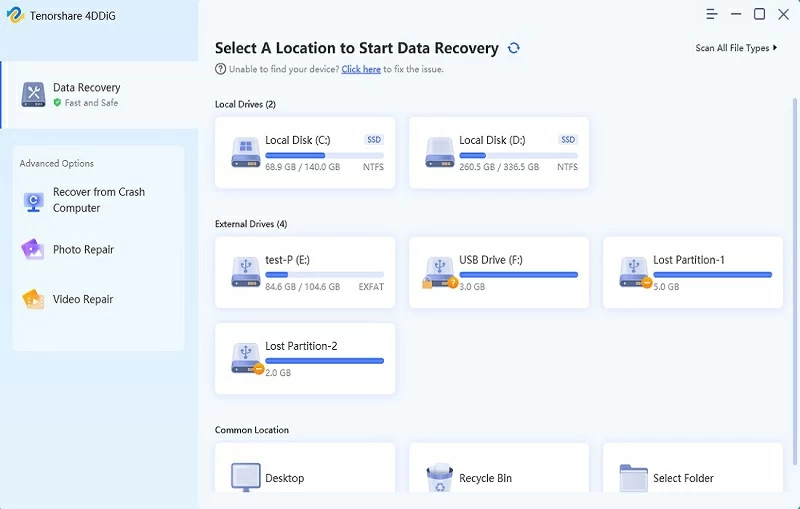
Step 2 Follow the on-screen instructions provided by the tool to enable USB debugging on your mobile phone. When confirming, simply click "OK" on your phone to allow USB debugging.
Step 3 Select the type of file you want to recover, such as photos, videos, documents, etc. If you need to restore all the data, you can select the "Select All" option. After that, click the "Scan" button and wait for the scan to complete.
After the scan in Step 4 is completed, you will see a list of recoverable data. Finally, simply click the "Restore" button to retrieve your data.
It is completely feasible to recover data from an SD card after formatting. The key lies in choosing professional data recovery software. To ensure the selection of the most suitable tool, it is recommended that you conduct a comprehensive assessment from the following dimensions:
1. Wide compatibility: Excellent tools should be compatible with SD cards of all brands, fully support mainstream file systems such as FAT32, exFAT, and NTFS, and be compatible with Windows and macOS operating systems.
2. Comprehensive file type support: Ensure that the software supports all file formats you need to recover, including image files (JPG, PNG, RAW, etc.), video files (MP4, MOV, AVI, etc.), and document types (PDF, DOC, XLS, etc.).
3. High recovery success rate: The recovery process is time-consuming and may incur costs. It is recommended to give priority to tools with a higher success rate. The actual recovery effect can be understood through professional review websites or social platforms such as Reddit and Quora.
4. User-friendly operation experience: Considering that most users are not technical experts, a simple and intuitive operation interface is of vital importance. Complex tools may cause data overwriting due to improper operation, resulting in secondary damage.
5. A complete trial mechanism: Reliable software should offer a free trial version, such as verifying the effectiveness of core functions, confirming the scope of recoverable files, and evaluating the overall performance of the software.
6. File Preview Function: The preview function enables users to confirm the integrity of files before recovery, ensuring that the most critical data is restored first and avoiding invalid operations.
7. Professional technical support: The data recovery process is full of uncertainties. High-quality technical support can promptly solve all kinds of problems you encounter, significantly improving the efficiency and success rate of recovery.
8. Good market reputation: Among the numerous recovery tools, it is recommended to choose products that have been verified by the market. You can learn about the real evaluations of the software through authoritative evaluation platforms such as Trustpilot or independent technical websites.
As an important data storage medium, SD cards will cause many inconveniences once data loss occurs. With professional data recovery tools, in most cases, data lost due to formatting can be effectively retrieved. For the security of your data, we recommend that you choose genuine SD cards of reliable quality, establish a regular data backup mechanism, and store important data in multiple locations.