- Data Recovery
- Data Recovery for PC
- Data Recovery for Android
- Data Recovery for iPhone/iPad
- Unlock For Android
- Unlock for iPhone/iPad
- Android System Repair
- iPhone/iPad System Repair

Updated By Amy On Nov 22, 2026, 5:37 pm
Accidental overwriting of important files is indeed a cause for concern, but what most users don't know is that these files are often not lost permanently but can be retrieved through appropriate methods. Whether you are using a Windows system or an Android device, as long as you master the correct tools and steps, there is still a chance to recover overwritten key documents, photos or multimedia files. This article will provide a detailed introduction on how to recover overwritten files on Windows and Android devices, guiding you step by step out of the predicament of data loss.
File overwriting usually occurs in the following situations: The most common one is when an old file is directly saved after editing, and the new content will overwrite the storage location where the original file is located; Another situation is that after deleting a file, the system releases the space it occupies, and the new data stored later may overwrite this area. Whether you can successfully recover largely depends on your response speed. The more and more frequently you operate on the disk, the lower the possibility of recovery, especially on solid-state drives (SSDS) that support the TRIM function.
As for whether the overwritten data can be recovered, the answer is not absolute. The possibility of recovery is influenced by multiple factors.
1. The length of time after coverage occurs: Time is of vital importance. The longer the time elapsed after overwriting and the more new data is written, the lower the chance of successful recovery will be.
2. Storage medium type (HDD or SSD) : The data recovery success rate of traditional mechanical hard disks (HDD) is relatively high because the overwritten sectors may temporarily retain the original information. Solid-state drives (SSDS) are usually equipped with TRIM and wear balancing mechanisms. Once data is overwritten, it is often difficult to retrieve.
3. Completeness of coverage: Partial coverage may still retain some recoverable data fragments, while complete coverage usually means that the original data has completely disappeared.
4. Quality of the recovery tools or services used: High-quality data recovery software or professional services usually offer advanced functions such as deep scanning and original file sculpting, which can significantly enhance the recovery effect.
5. The health condition of the storage device itself: Good device condition, no bad sectors or physical damage, which helps to increase the success rate of data recovery; Conversely, if the equipment is already damaged, the difficulty of restoration will increase significantly.
In the Windows system, if important files are accidentally overwritten, you can restore them through the following methods:
Windows offers a "Previous Versions" feature that can help you recover overwritten files. Before using this method, please ensure that the "File History" function has been enabled in the system. The operation steps are as follows:
Step 1 Open File Explorer and enter the folder containing the overwritten file.
Step 2 Right-click on the folder, select "Properties" > "Previous Versions", and the system will display the list of historical versions of the folder and the corresponding dates. Select the version you wish to restore. Click the "Restore" button to restore the selected version of the file.
If you have ever created a backup using the built-in "Backup and Restore" feature of Windows, you can also restore the overwritten files from it. The operation steps are as follows:
Step 1 Click the Start menu, search for and open the "Control Panel".
Step 2 Select "Backup and Restore (Windows 7)". If it is not displayed directly, please switch the viewing method to "Large Icon" or "Small Icon".
Step 3 Click "Restore My Files". Select the "Browse" option to locate the specific files you need to recover. Click "Next".
Step 4 Select to restore the file to its original location or specify a new location. Finally, click "Restore" to complete the operation.
If the system backup function is not enabled, you can use professional data recovery tools, such as Geekersoft Data Recovery. This tool supports data recovery from various storage devices such as hard disks, USB flash drives, SD cards, virtual disks, and RAID arrays, and offers two modes: quick scan and deep scan, effectively enhancing the success rate of data recovery.
In addition, Geekersoft Data Recovery software also offers the following practical functions, such as virtual RAID reconstruction, drive data recovery, professional text/hexadecimal editor, hard disk image creation, etc.
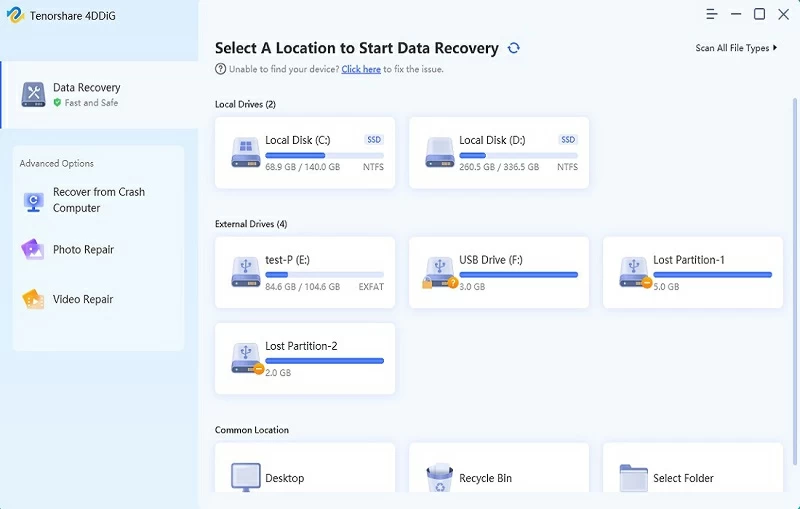
The main features of Geekersoft Data Recovery:
Deal with various data loss scenarios, such as accidental deletion, formatting, partition loss or damage, system crash, etc.
Support partition management operations such as disk partition adjustment, format conversion (GPT/MBR), and space reallocation.
It can safely clone disks or partitions, migrate operating systems, and create hard disk images.
It provides maintenance functions such as disk health detection, bad sector repair, and thorough data erasure.
When the backup or the historical version of the File is unavailable, data Recovery can be achieved by using the command-line tool Windows File Recovery officially launched by Microsoft. This method tracks overwritten data by scanning the original storage sectors and is particularly effective in the absence of backups. The operation steps are as follows:
Step 1 Download and install Windows File Recovery from the Microsoft Store
Step 2 Press the Windows key, search for and launch the tool, and authorize the required system changes
Step 3 Enter a command in the following format in the Command Prompt window:
cmd
winfr source-drive: destination-drive: [/mode] [/switches]
Mode Selection Guide:
Regular mode: Applicable to recently lost files in the NTFS file system.
Broad mode: Applicable to metadata corruption or more complex data loss situations.
Usage example:
1. Restore PDF files in regular mode:
cmd
Winfr C: E: /regular /n *.pdf
2. Recovery of image files in extensive mode
cmd
Winfr C: E: /extensive /n \Users\Pictures\*.JPEG /n \Users\Pictures\*.PNG
Important Notice:
The source drive and the target drive must be different.
Use the /n switch to specify the particular file or folder to be restored.
The system will automatically create a "Recovery_" folder on the target drive to store the recovery results.
Type "Y" to confirm the operation. Press Ctrl+C to cancel at any time.
Recovering overwritten files on the Android platform is relatively complex, and the built-in recovery function of the system is limited. It is recommended to use professional tools such as Geekersoft Data Recovery (Android), which can effectively recover various types of files such as photos, videos and documents that have been overwritten.
Main features of Geekersoft Data Recovery (Android):
Offer industry-leading data recovery success rates.
Intuitive interface design, no professional technical knowledge required.
The quick scanning mechanism saves users' time.
Support the recovery of over 11 file types including photos, videos, contacts, call records, etc.
Designed specifically for data recovery of WhatsApp and WhatsApp Business.
Compatible with over 6,000 Android smartphones and tablet devices.
The following are the operation steps for recovering overwritten files on Android using Geekersoft Data Recovery (Android):
Step 1 Install and launch Geekersoft Data Recovery (Android) on your computer, and connect the device via USB.
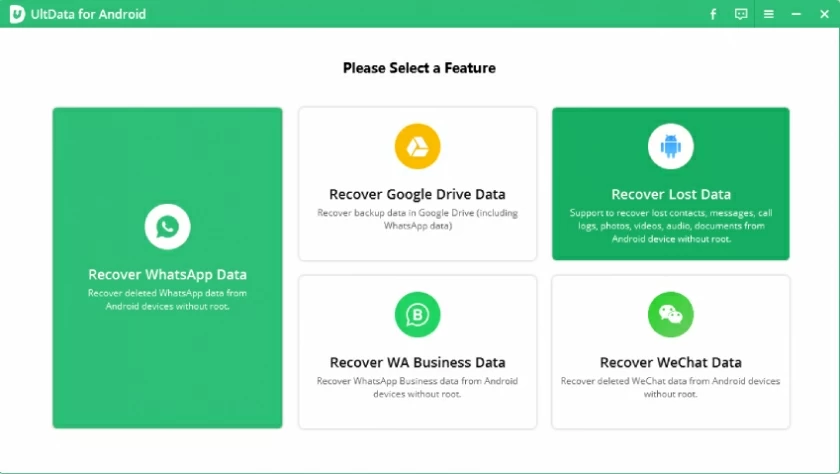
Step 2 According to the interface prompts, enable the USB debugging mode on your mobile phone, select the file type you need to recover, and click "Scan".
Step 3 Keep the device connected stably, wait for the scan to complete, then preview the scan results, select the files you need to restore, and click "Restore" to save the files to the designated location on your computer.
Whether on the Windows or Android platform, the key to recovering overwritten files lies in a quick response and the proper use of the right tools. Windows systems can be restored through file history, backup and restore, or professional command-line tools. For Android devices, Geekersoft Data Recovery (Android) offers a professional and reliable solution. You can choose the appropriate method as needed.