- Data Recovery
- Data Recovery for PC
- Data Recovery for Android
- Data Recovery for iPhone/iPad
- Unlock For Android
- Unlock for iPhone/iPad
- Android System Repair
- iPhone/iPad System Repair

Updated By Cameron On Aug 20, 2026, 5:57 pm
Artificial intelligence tools have been widely popularized in various fields, and their functions have become increasingly powerful, capable of completing many tasks that previous models could not achieve. Among them, the PDF to PPT AI tool is a typical representative. This type of tool is more advanced than previous converters and features intelligent functions, which can effectively enhance efficiency. If you are also looking for a PDF to PPT AI tool that can convert PDFS into presentations, then you mustn't miss this article. We will introduce to you the top 5 PDF to PPT AI converters currently ranked in the industry. They each have their own advantages, and you can choose according to your own situation.
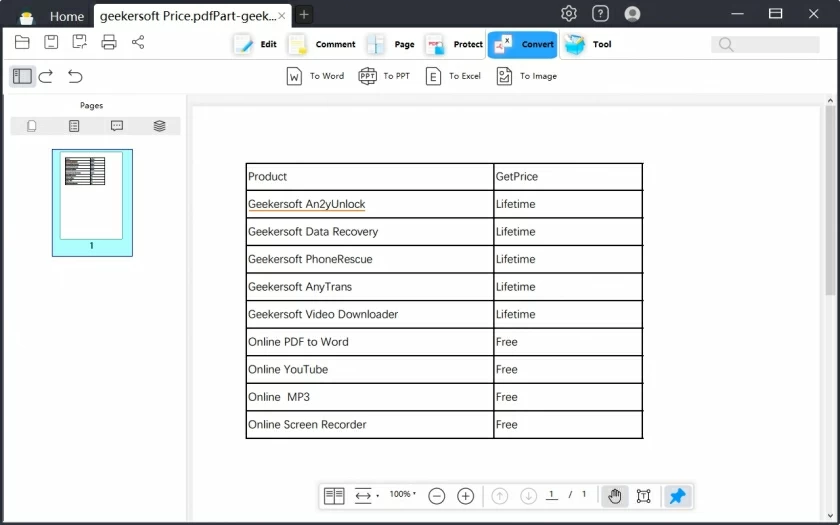
GeekerPDF is an excellent desktop PDF solution. It is equipped with a powerful file converter that supports mutual conversion between PDF and multiple file formats. At present, this tool has been upgraded and integrated with AI tools, possessing outstanding artificial intelligence capabilities. For instance, users can communicate with the AI assistant Lumi to learn how to convert PDFS to PPTS using Geekersoft PDF. Lumi will provide operation guidance and display the button to activate the converter. This is extremely friendly to beginners and can help them quickly locate the required functions. In addition, users can also activate any function through the AI side panel to optimize the workflow. Geekersoft PDF has received high praise from users all over the world and is an outstanding PDF manager in the market. Its conversion function is powerful, capable of converting PDF to Word, Excel and PowerPoint formats, perfectly maintaining the original format of the document without any errors.
Advantages Geekersoft PDF:
Geekersoft PDF makes the PDF conversion process more convenient.
Support batch conversion and features a powerful OCR function, capable of converting scanned PDFS into editable PPTS.
Users can independently choose to convert the entire PDF file or only convert specific pages.
Disadvantage of Geekersoft PDF:
Geekersoft PDF offers a free trial service. After the trial period ends, users need to upgrade to the paid version to continue using the AI and converter tools.
Many users know that Sendsteps is an online tool that can help users quickly create presentations. Users can generate slides by describing the topic or uploading a PDF. However, please note that it does not directly convert PDF to PPT. Instead, it creates PowerPoint based on the content of the PDF and the specified audience. Therefore, the generated slides may differ from the original PDF.
Advantages of Sendsteps:
Sendsteps can personalize PowerPoint based on the characteristics of the target audience, helping users easily create presentations.
Its AI function is powerful, stable and reliable.
Disadvantage of Sendsteps:
This tool creates PowerPoint presentations based on PDF content. The generated presentations may differ from the original PDF. An Internet connection is required when in use.
For users looking for a free PDF converter, PDFgear is worth a try. This PDF management tool is completely free and offers both online and offline versions, making it very convenient to use. PDFgear is an excellent choice for editing PDFS. It also has the function of a PDF converter and is highly praised by users. It should be noted that the online version does not come with artificial intelligence functions, while the offline tool performs well. Users only need to give the AI a command to convert PDF to PPT to complete the operation.
Advantages of PDFgear:
PDFgear is a completely free tool. Its AI Copilot feature enables users to issue instructions to the software, such as requesting to convert a PDF to a PPT. At the same time, both online and offline converter versions are provided.
Disadvantage of PDFgear:
The lack of custom options makes it impossible to select to convert only part of the PDF pages. The startup of artificial intelligence tools takes a long time.
Mathpix has a wide user base of students and teachers and is highly favored for its free feature. However, this tool cannot directly convert PDF to PPT. Users can utilize its AI capabilities to convert PDF to DOCX format and then complete subsequent operations with the help of a free DOCX to PPT converter. Although the process is rather complicated, it is feasible. Users consider Mathpix to be an excellent application for scanning and converting documents, with simple and easy-to-understand operation.
Advantages of Mathpix:
Mathpix is free and accessible to teachers and students, featuring powerful artificial intelligence technology.
Disadvantage of Mathpix:
The conversion from PDF to PPT cannot be directly achieved.
Some users know that Windows 10 and later versions have a built-in Microsoft Edge browser, which integrates an AI tool similar to ChatGPT, Bing Chat. With the help of this function, users can convert PDF to PPT through a browser, but the process is cumbersome and requires a lot of effort. If time is tight, this plan is not an ideal choice. Users can read and summarize the PDF content through Bing Chat, then copy the summary and manually create a PowerPoint presentation.
Advantages of Microsoft Edge:
Microsoft Edge is pre-installed on Windows 10 and later versions of computers. Its integrated Bing Chat is a reliable artificial intelligence tool.
Disadvantage of Microsoft Edge:
PDF cannot be directly converted to PPT; a lot of manual operations are required.
With the PDF to PPT AI converter, users can easily convert PDFS into presentations. The above are the 5 top PDF to PPT AI converters we have introduced to you. Among them, Geekersoft PDF performs exceptionally well. Users can activate the converter function through their AI assistant, and also use the AI assistant to obtain more topic information or switch PDFS to presentation mode, which is simple and efficient.