- Data Recovery
- Data Recovery for PC
- Data Recovery for Android
- Data Recovery for iPhone/iPad
- Unlock For Android
- Unlock for iPhone/iPad
- Android System Repair
- iPhone/iPad System Repair

Updated By Soha On Dec 16, 2025, 9:36 pm
In the information age, smart products have brought great convenience to people's lives. The popularity of smart phones enables us to communicate with the world anytime and anywhere. Using passwords to build a solid security line for smartphones plays a crucial role in protecting the sensitive data stored in them. Take the Apple iPhone as an example. The emergence of advanced technologies such as Touch ID fingerprint recognition and Face ID facial recognition has brought great convenience to users, enabling people to unlock their mobile phones easily.
However, these biometric functions are not foolproof; they require traditional personal identification numbers (PINS) as an alternative. Once the biometric technology malfunctions and the device cannot be unlocked successfully, the mobile phone will pop up a prompt asking the user to enter the PIN code. When you encounter the situation where your device is locked or certain functions cannot be used normally, it will cause great inconvenience to your work and life. This article will offer you some practical suggestions to avoid the potential risk of your iPhone being locked, and also provide you with several secure methods to unlock an iPhone that has been locked.
Set a simple and easy-to-remember password, such as a combination of letters and numbers that you can remember. Avoid using overly complex passwords.
2. Enable biometric functions such as Face ID facial recognition or Touch ID fingerprint recognition.
3. Enable the "Find" feature on your iPhone and regularly back up your data via iCloud or iTunes.
4. Keep your Apple ID and password in mind just in case.
We recommend that you use Geekersoft iPhone Unlocker. It is a powerful unlocking tool that has received high praise from users. It can not only help you unlock your iPhone if you forget your password, but also help you regain access to your disabled iPhone. It is applicable to all iPods, iphones and ipads running iOS 15 and above. You might have forgotten your iPhone password because you haven't used it for a long time or due to forgetfulness. No matter what the reason is, it can help you unlock it easily, safely and reliably. In addition,Geekersoft iPhone Unlocker requires no technical background. You can easily master it. Just click the mouse and you can use this tool to unlock your iPhone through your computer. Geekersoft iPhone Unlocker is compatible with both Mac and Windows systems, which is very convenient.
For information on how to unlock your iPhone with Geekersoft iPhone Unlocker without a password, you can refer to the following steps.
Step 1 Please download and install Geekersoft iPhone Unlocker on your PC, and then launch it. And connect the iPhone to the computer using a Lightning data cable.
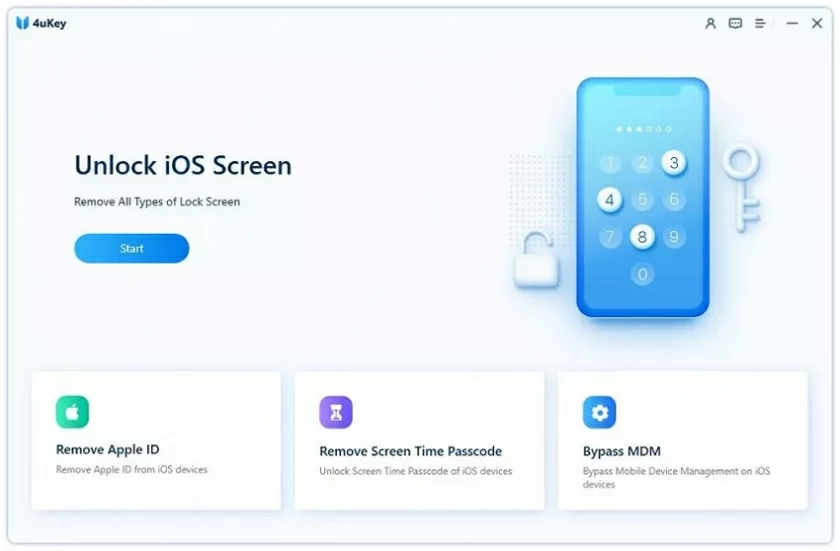
Step 2 On the Geekersoft iPhone Unlocker home interface, click "Unlock Screen". Then check the box to accept and confirm the prompt message, and then click "Start".
Step 3 After your iPhone is recognized, select the corresponding firmware based on your iPhone and then click "Start Downloading". After downloading the firmware, click "Start Decompression".
Step 4 After the decompression is completed, click "Start Unlocking", and the Geekersoft iPhone Unlocker will automatically unlock your iPhone screen.
By resetting the device, you can also regain access to it. If you want to reset your iPhone, you can also choose to do it through "Find My Device". It should be noted that the prerequisite for using this method is that your iPhone has enabled the "Find My Device" function. In addition, after the device is reset, the original data will no longer be saved. If you have backed up in advance, you can restore it through the backup. The specific operation steps are as follows.
Step 1 Launch the "Find My" app, select "Devices", and then click on the iPhone you want to unlock from the list.
Step 2 Click "Erase This Device" to reset your iPhone and remove the password.
When you have a computer, you can clear all the data on your iPhone through iTunes, including unlocking the password lock Settings. The principle of this method is to set your iPhone as a new one with no data, and of course, no password. After updating iTunes to the latest version, the specific operation steps are as follows.
Step 1 Connect your iPhone to your computer using a USB cable and then launch iTunes.
Step 2 Click "Summary" > "Back Up Now" to back up the data.
Step 3 Click "Restore iPhone" to restore the factory Settings. At this point, your password will be cleared.
Step 4 Follow the prompts, click "Restore from iTunes Backup", and select the ppropriate backup data to restore to your iPhone.
At this point, you can access your iPhone without any obstacles and set a new password for it.
This method can also help you regain access to your iPhone. The prerequisite is also that the "Find My Device" function has been enabled. This method will clear all the data on the iPhone. If you have made a backup in advance, you can restore it through the backup. The specific operation steps are as follows.
Step 1 Visit the iCloud website through a browser, and then log in with your Apple ID and password.
Step 2 Click the "All Devices" menu and select your iPhone from it.
Step 3 Click "Erase iPhone" to reset the device and remove the password.
After setting your iPhone to recovery mode and resetting it with iTunes, you can also regain access to the device. Please note that this method will result in the permanent deletion of all data within the device. The specific operation steps are as follows.
Step 1 Switch your iPhone to DFU mode or recovery mode. The specific operation is to hold down the power button and the volume down button simultaneously.
Step 2 Launch the iTunes software on your computer, and then connect the device to the computer using a USB data cable.
Step 3 Wait for a pop-up window to appear on your computer, prompting you to perform the iPhone recovery operation. After clicking the "Restore" option, iTunes will reset your iPhone and clear your password at the same time.
The above are several effective methods we have introduced to you for clearing your iPhone password and regaining device access. In addition, you can also help deal with the situation of forgetting your iPhone password by setting a simple and easy-to-remember password or through biometric recognition and other methods.