- Data Recovery
- Data Recovery for PC
- Data Recovery for Android
- Data Recovery for iPhone/iPad
- Unlock For Android
- Unlock for iPhone/iPad
- Android System Repair
- iPhone/iPad System Repair

Updated By Tom On Dec 20, 2025, 8:03 pm
As is well known, the lock screen password of an iPhone is the key to protecting the security of personal data. However, in People's Daily lives, it is not uncommon for devices to be disabled due to forgetting passwords or multiple incorrect attempts. At this point, if you are facing the situation of forgetting your iPhone password and being unable to unlock it, then you mustn't miss this article. We will introduce to you how to unlock directly through iOS devices when you don't have a computer.
This is an official unlocking method that does not require a computer and can be operated directly on the lock screen interface. Please note that you need to know that this method is only applicable to iphones running iOS 15.2 or newer systems. In addition, you have enabled "Find My iPhone" in the "Find" function of your iPhone, and the current device must be connected to a cellular mobile data or Wi-Fi network. The specific operation steps are as follows.
Step 1 On the lock screen interface, enter the incorrect password 7 times in a row until the iPhone displays the prompt "iPhone Unavailable" or "Secure Lock". When "Erase iPhone" appears in the lower right corner of the screen, click on this option.
Step 2 Click "Delete All Content and Settings" > "Erase" option, and follow the prompts to enter your iPhone's Apple ID password to verify that you are the owner of the device.
Step 3 After confirming "Erase iPhone" again, your iPhone will start erasing all content and Settings, and your iPhone will automatically restart. Finally, follow the prompts to click on "Apps and Data" > "Restore from iCloud Cloud Backup", log in to your Apple ID, and then select the latest backup to start restoring data.
If you don't want to use a computer or don't have one around, there is still a chance to unlock your disabled iPhone. By using other iOS devices and through the "Find" app, you can unlock your locked iPhone without a computer. iOS users all know that Find My is an application built into Apple devices. It can not only help you retrieve lost iOS devices with the help of GPS positioning, but also support remote deletion of data on the devices. However, this method requires that the iPhone you have locked has the "Find" function enabled and is connected to the Internet. In addition, your Apple ID and iCloud account will be needed during the operation process. After performing this operation, all data on your phone will be erased, including custom Settings and various files. Therefore, please use it with caution. The specific operation steps are as follows.
Step 1 On another iOS device, click on the "Settings" app and log in using your Apple ID. Find the "Find Me" app and open it. At this point, a map will appear on the screen, marking the locations of all devices associated with your Apple ID.
Step 2 Click on "Devices" to view all iOS devices that are connected to your account. Find the locked iPhone in the device list and click on it. Then, in the pop-up window, click the "Delete this Device" > "Continue" button.
Step 3 Click the "Erase" option and then enter your Apple ID information to continue the operation. Then, click the "Erase" option again to start the erasure process.
Step 4 Reset your iPhone or, after the operation is completed, restore the data through iCloud backup.
The method of bypassing the iPhone lock screen password through Siri is a system security vulnerability that has long been fixed by Apple and only exists in early iOS systems (approximately iOS 8 to iOS 10.1 versions). This method is ineffective on any currently supported iOS system (iOS 12 and later versions). The specific operation steps are as follows.
Step 1 Press the Home key to wake up Siri. If you have enabled the "Hey, Siri" function, simply say the command. Then ask Siri about the current time. When Siri displays the time, click on the time information. This way, you can enter the Clock application. After entering, find the World Clock section and click the "+" button on the upper right corner. Then, enter some content in the search bar and double-click the selected text to complete the selection.
Step 2 After selecting the text, click the "Share" button in the editing options. From the pop-up list, select the message App and enter the text you just selected in the "Recipient" field. After that, click the "+" button to add a new contact, select the "Create New Contact" option, and add a photo to this contact.
Step 3 Then, the system will guide you to the Photos app to view all the albums. Open one of the photo albums and press the home button after opening. At this point, you will enter the home screen of the locked phone and successfully bypass the password.
Later, you can change the password in the Settings. But this method is not always effective.
We recommend that you use Geekersoft iPhone Unlocker. It is a powerful unlocking tool that has received high praise from users. It is applicable to all iPods, iphones and ipads running iOS 15 and above. You might have forgotten your iPhone password because you haven't used it for a long time or due to forgetfulness. No matter what the reason is, it can help you unlock it easily, safely and reliably. In addition, unlocking an iPhone with Geekersoft iPhone Unlocker requires no technical background. You can easily master it. Just click the mouse and you can use this tool to unlock your iPhone through your computer.
For information on how to unlock your iPhone with Geekersoft iPhone Unlocker without a password, you can refer to the following steps.
Step 1 Please download and install Geekersoft iPhone Unlocker on your PC, and then launch it. And connect the iPhone to the computer using a Lightning data cable.
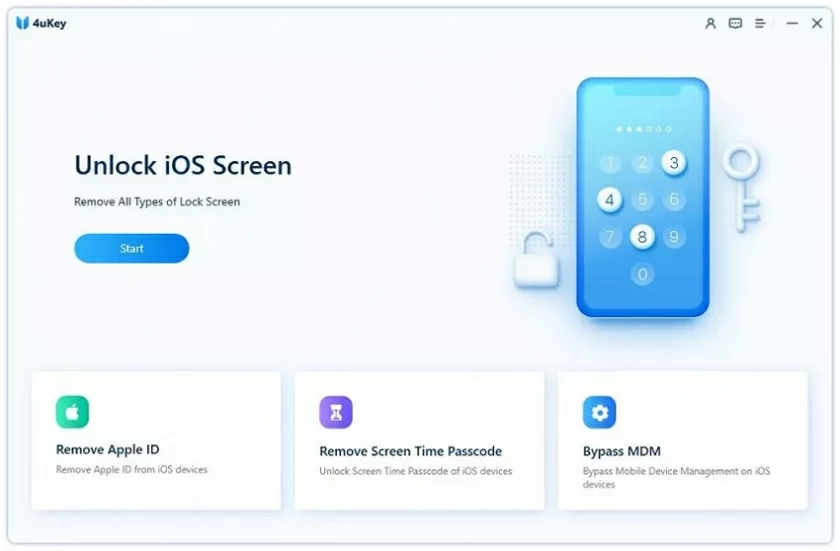
Step 2 On the Geekersoft iPhone Unlocker home interface, click "Unlock Screen". Then check the box to accept and confirm the prompt message, and then click "Start".
Step 3 After your iPhone is recognized, select the corresponding firmware based on your iPhone and then click "Start Downloading". After downloading the firmware, click "Start Decompression".
Step 4 After the decompression is completed, click "Start Unlocking", and the Geekersoft iPhone Unlocker will automatically unlock your iPhone screen.
If you are facing the situation where your iPhone is disabled, you can try the solutions provided in this article. Each of these solutions has its own advantages and disadvantages. Choosing the right and effective one can help you get rid of the trouble of not being able to access your disabled iPhone.